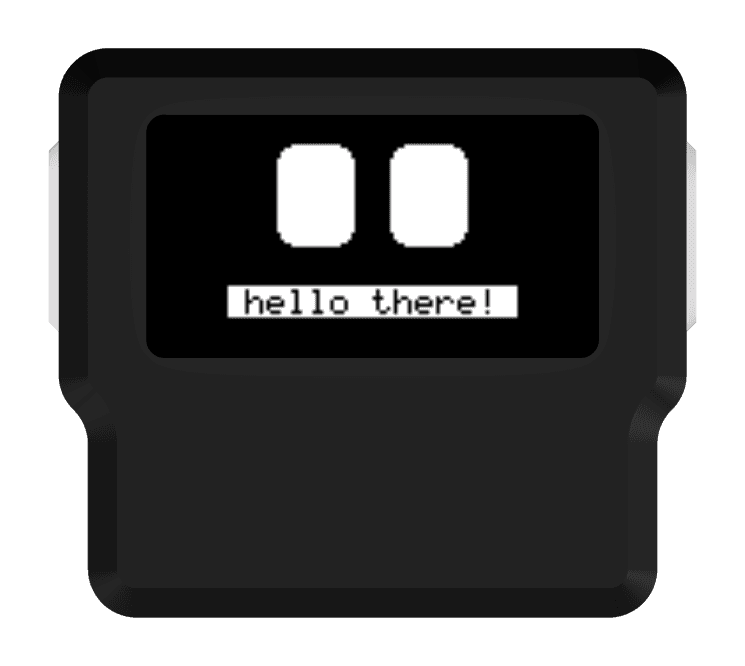
Moji is a pocket-sized expressive companion with custom hardware, embedded firmware, and a native iPhone app for a personal Library, nearby friends, games, and everyday tools.
A little electronic companion with animated eyes. It puts short notes, games, timers, and a bit of personality in a pocket-sized device.
My contribution
I design the hardware, write the software running on the device, and build the iPhone app that connects to it.
Where it stands
The latest version has passed software checks. Testing on the actual devices and preparation for a public release are still ahead.
Progress · October 2026
Preparing the full-feature release
Firmware and Moji Studio are at v1.0.4, with 17 experiences enabled in the release candidate. The latest work brings Study Cards, nearby messaging, two-player Pong, and a more consistent interface across the OLED and iPhone app.
Release candidate. The latest review records passing firmware, app, and gateway software checks. Physical testing on the matching devices, final distribution, and release review remain before a public launch.
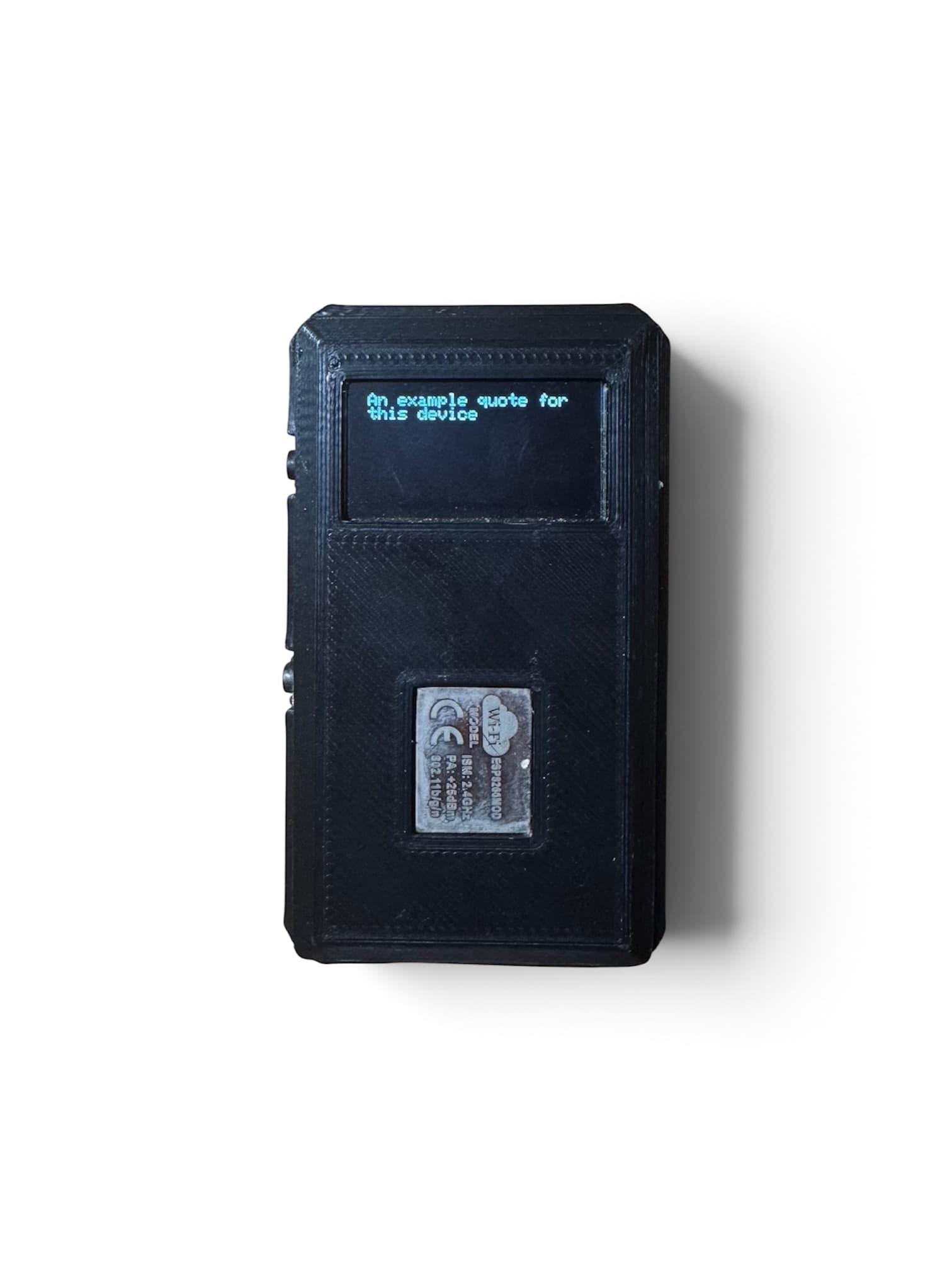
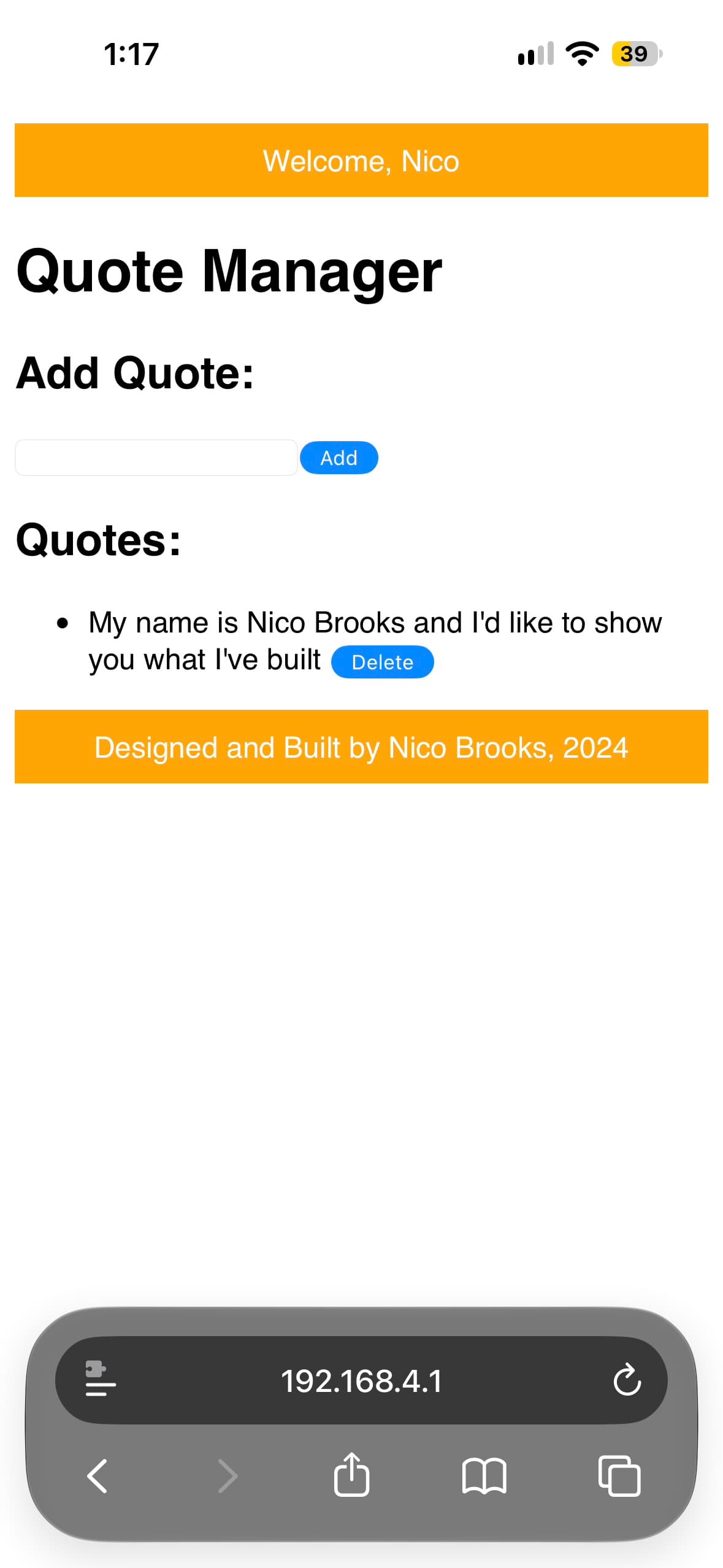
Pocket Quote — the first version in Moji’s history, displaying a saved quote.
The first prototype
Pocket Quote
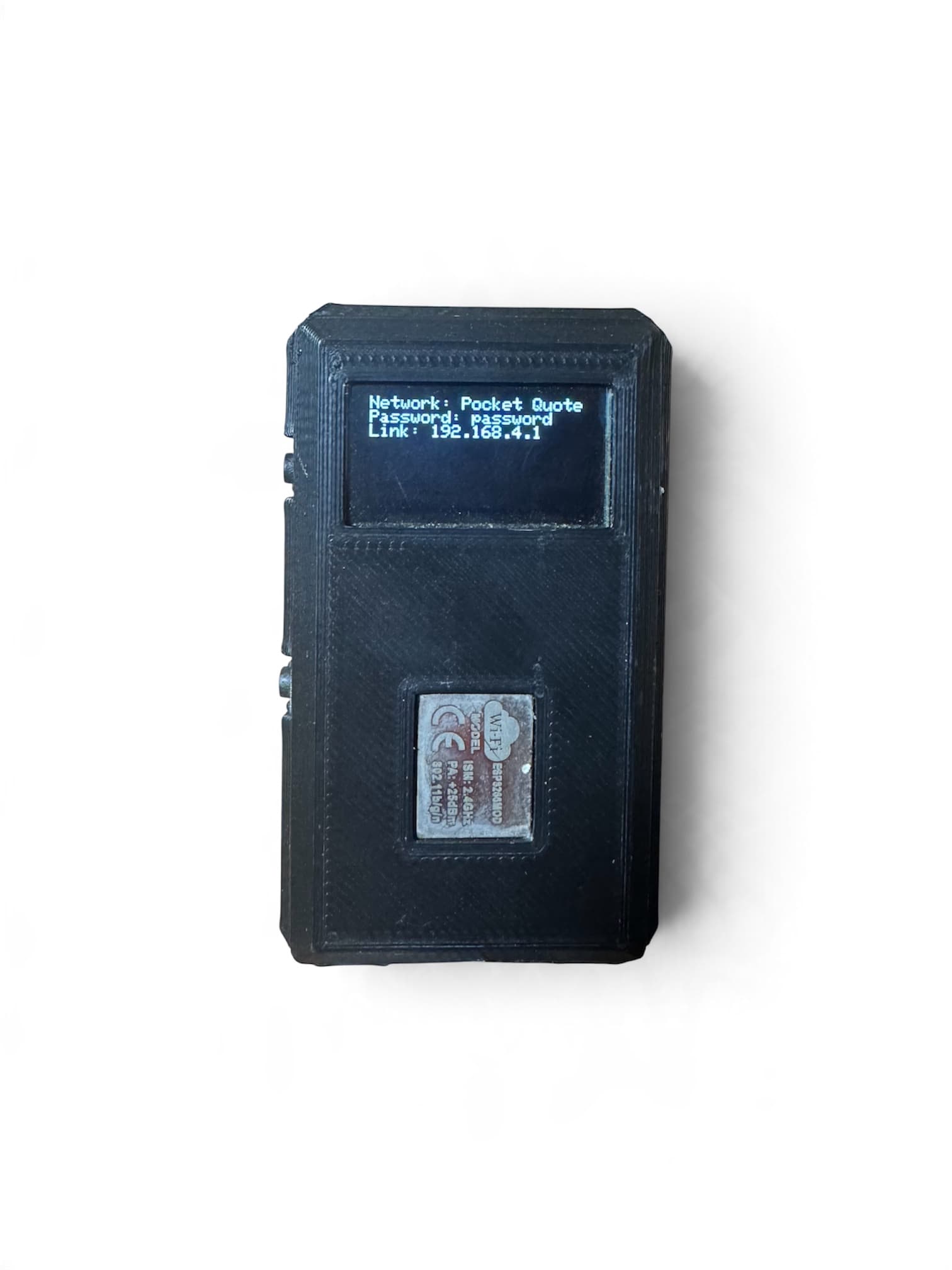
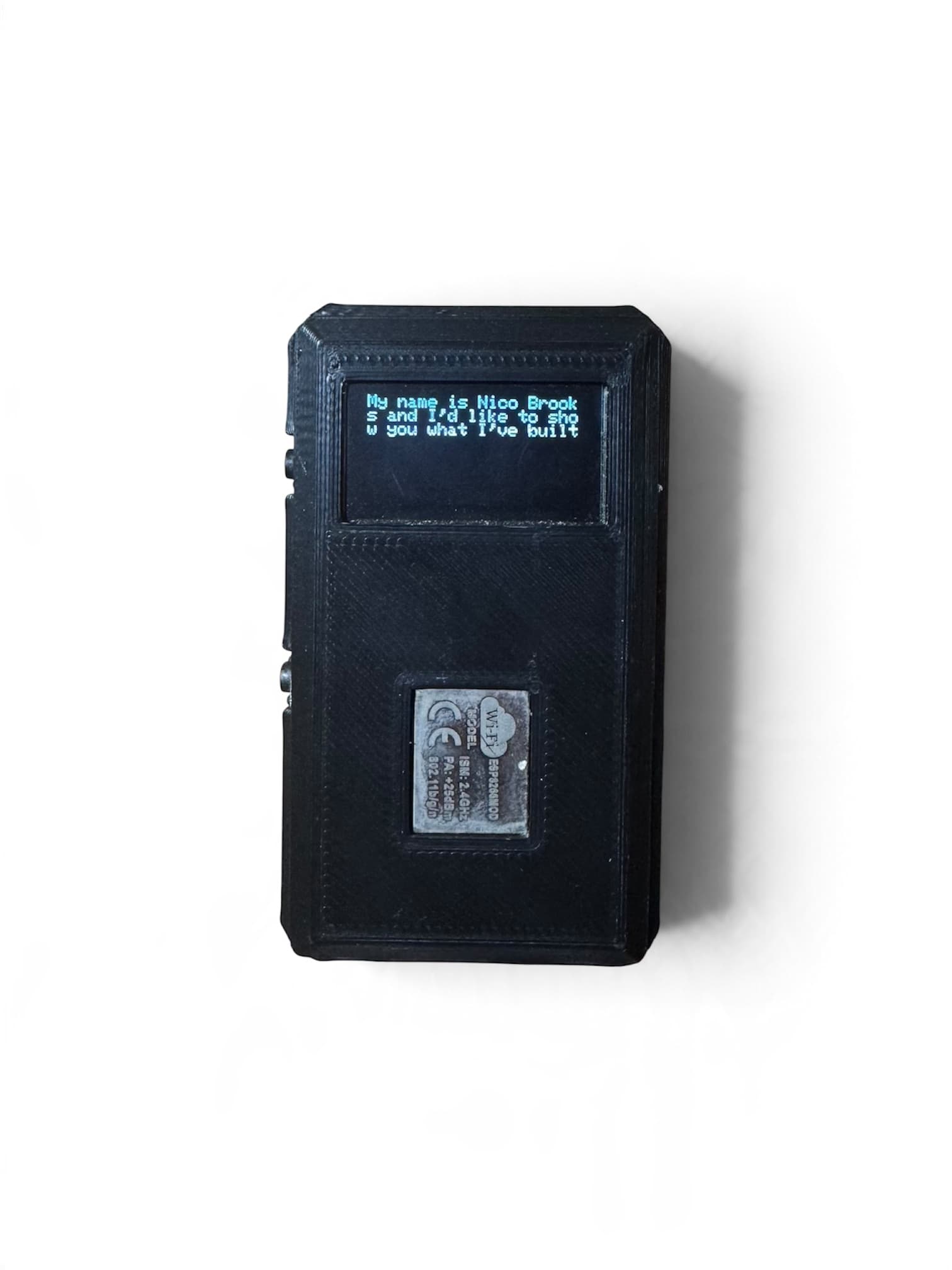
Moji began as Pocket Quote, a handheld device for quotes and affirmations. You connected to it over Wi-Fi to load your messages. The device stored them locally, so you could carry it with you and read them offline.
Its Quote Manager ran in a web browser over the device’s local Wi-Fi connection. You could add or delete quotes on your phone, then disconnect and read the saved messages on Pocket Quote.
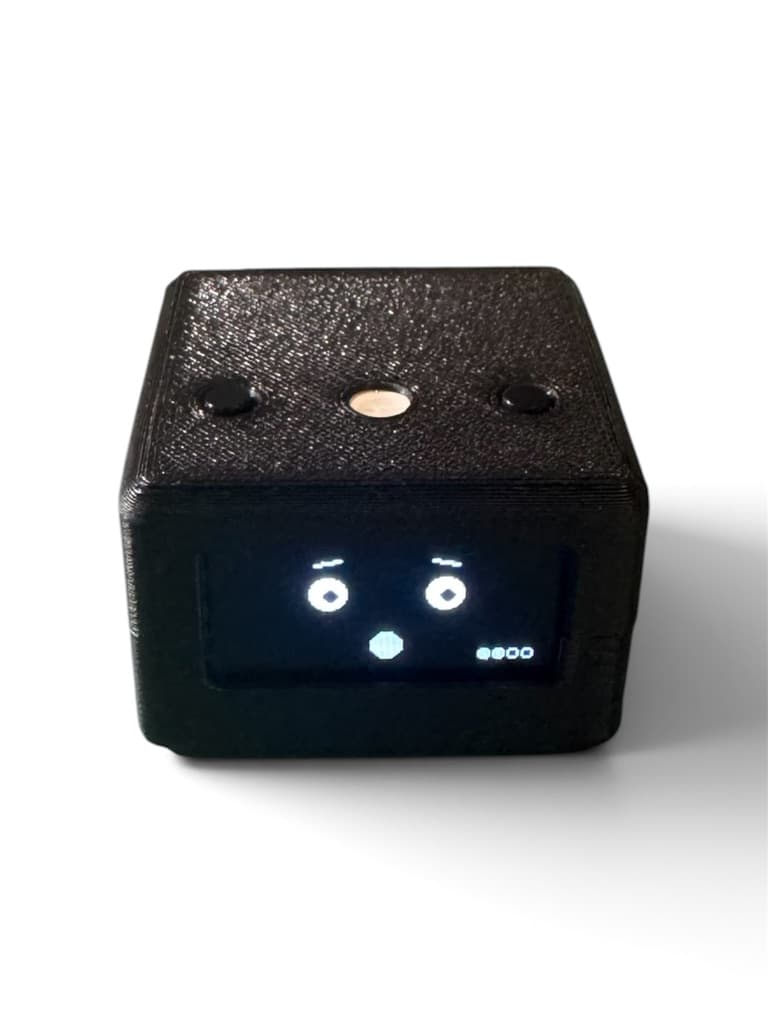
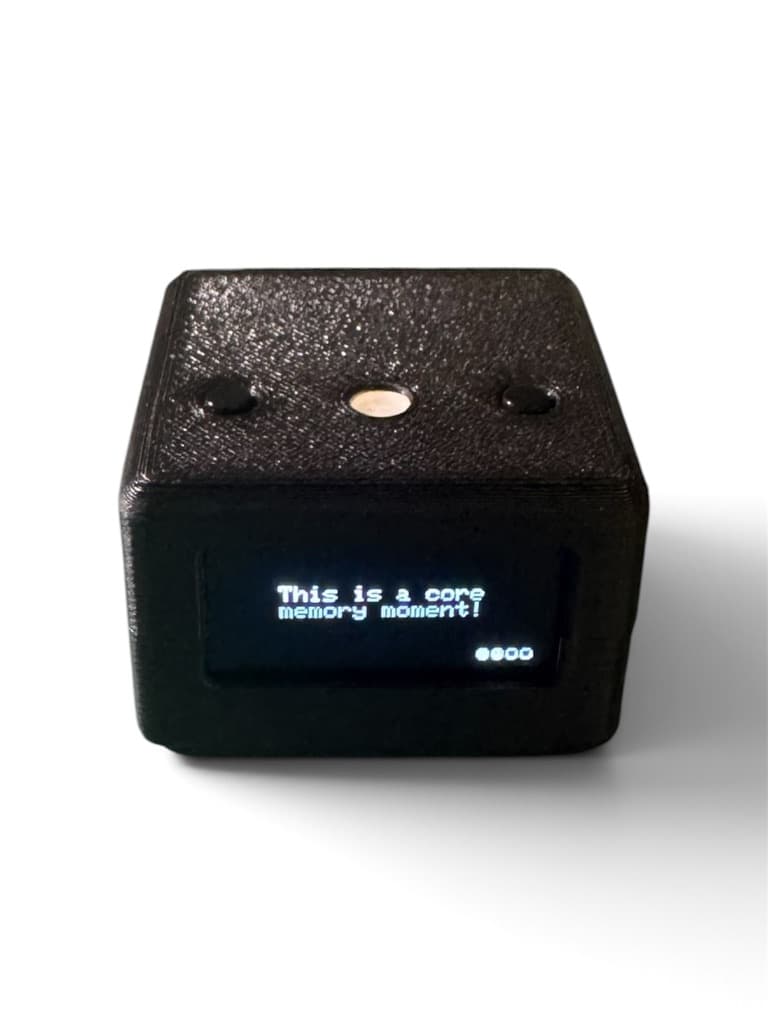
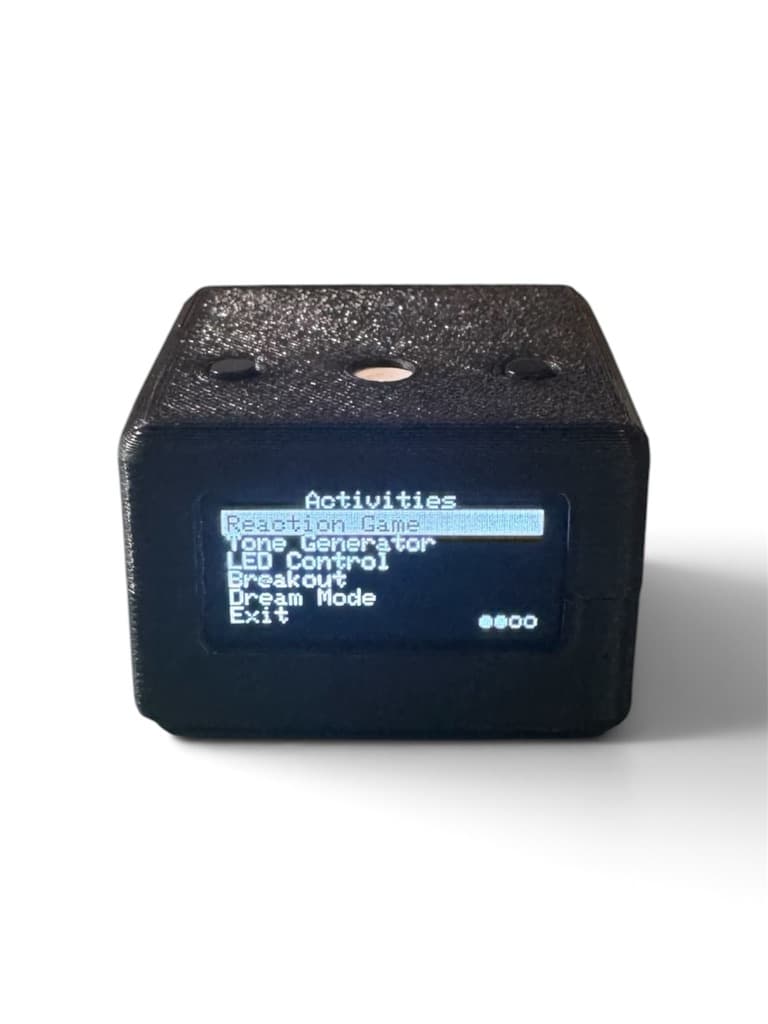
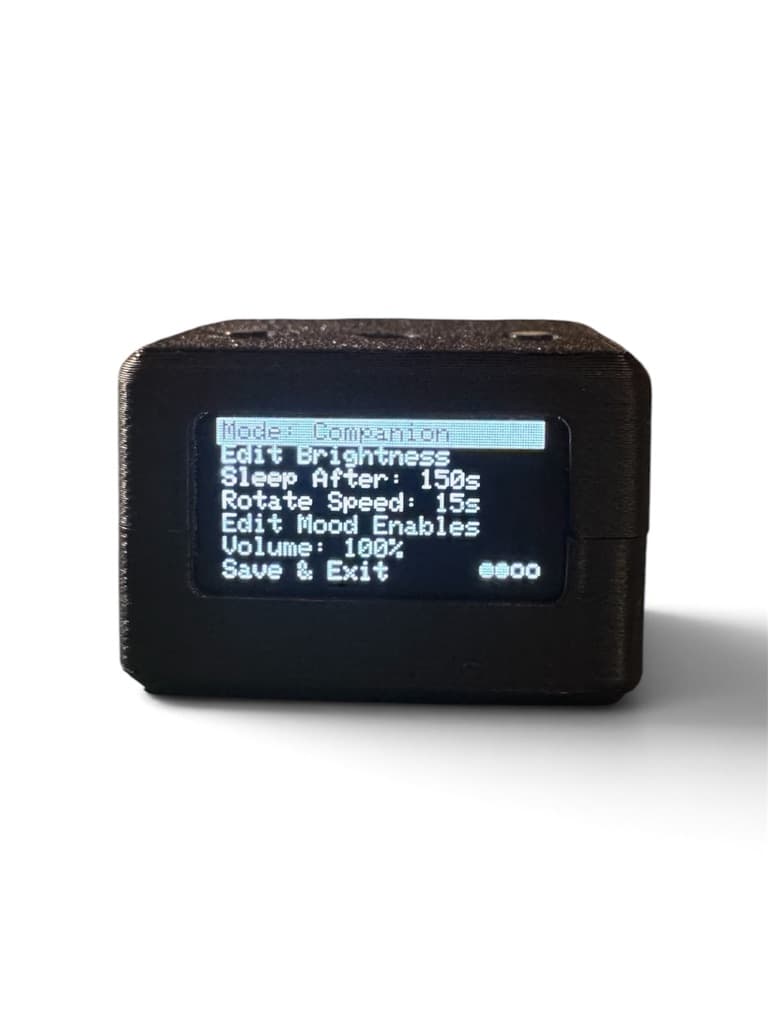
Cubelet followed Pocket Quote and became the version before Moji. Built around the RP2040, it added an expressive LED and a buzzer, with three modes: companion, quote, and affirmation.
It was designed to spend most of its time on a desk, with a small internal battery for portable use.
Quotes and affirmations alongside the companion mode.
Activities, including games and LED control.
On-device settings for modes, display, and sound.
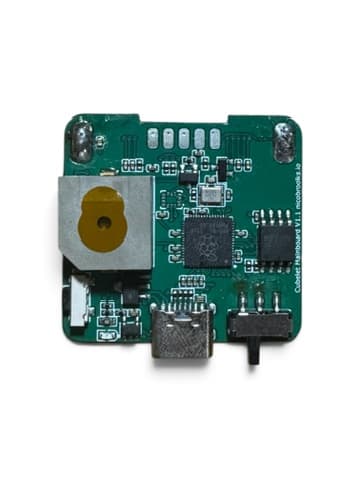
My first PCB design, made for Cubelet.
Learning through hardware
My first custom PCB
Cubelet was also the project I designed my first PCB for. I made a mistake in the display driver circuitry, so it didn’t end up working, but it was an excellent learning opportunity.
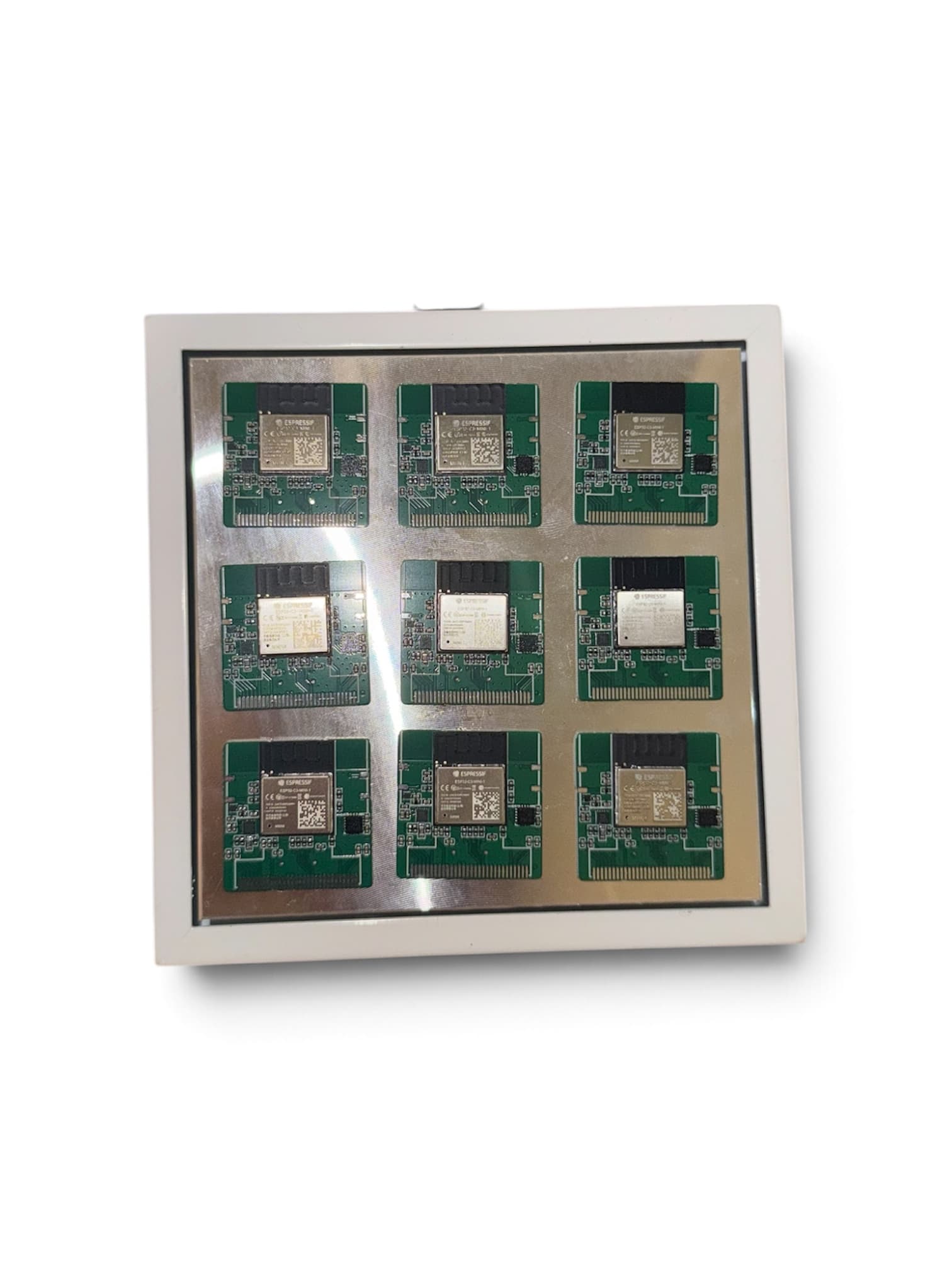
Moji’s final boards during assembly.
From Cubelet to Moji
Bringing Moji’s boards together
The hardware development continued with Moji. Here are its final boards being assembled, following the earlier prototypes and the lessons from Cubelet.
A companion, not a dashboard
The expressive face is the default experience. Moji follows movement, reacts to being handled, and gives the device a personality of its own. The app opens to the face, with Library, Friends, Activities, Controls, and Device in its drawer. Moji requires no account or subscription. Library content stays on the phone and paired device; firmware checks use an online service.
Designed around two buttons
Every interaction has to work with a left button, a right button, or both together. Short presses move through choices, deliberate holds confirm them, and the face responds immediately to input. The same interaction language carries through setup, apps, and settings.
Moji Studio for iPhone
I built a native SwiftUI companion app that connects over Bluetooth. Its Library includes Notes, Planner, Journal, and Study Cards. Full content stays on iPhone; pinned items receive a display-friendly copy on Moji. Offline edits and pending sync stay available on the phone.
Friends includes profile invitations and nearby messaging, while Device handles personalization, power, updates, and support. Optional reminders are checked while the app is open and connected. Optional music controls support Apple Music on iPhone, and Study Card dictation requires supported on-device speech recognition.
Play, tools, and nearby friends
The candidate includes Quick Draw, Pong with another Moji or an iPhone player, Reaction, Tilt Maze, Dice, Coin Flip, and Magic 8. Timer, Stopwatch, Light, Level, and Remote round out the everyday tools. Remote pairs separately as Moji Mouse with a supported Bluetooth HID host.
Nearby discovery and messaging run directly between Mojis over ESP-NOW. The latest work improves message reading and persistence, Pong rematches and disconnect handling, and clear controls for replaying the smaller games.
Updates and recovery
The update path verifies signed firmware metadata and checks the image, hardware, version, and paired identity before transfer over Bluetooth. A password-protected local Wi-Fi portal and USB recovery provide separate support paths. Standard firmware does not enable automatic boot rollback; interrupted updates and recovery still require physical validation on this candidate.